

Knowing where to find a website’s sitemap is a core skill for any SEO. Most of the time, it’s a straightforward process. You can usually just pop /sitemap.xml onto the end of the domain name, but if that doesn’t work, there are a few other reliable tricks, like checking the /robots.txt file or using a specific Google search command.
Why a Sitemap Is Your Secret SEO Weapon
Before we get into the nitty-gritty of how to find one, let’s talk about why you should even care. A sitemap isn’t just some dusty file sitting on a server. It’s your direct line of communication with search engines like Google.
Think of it as handing a detailed map of your website directly to a search engine crawler. This map shows them every important page you want them to find, from your main service pages to your latest blog posts. Without it, you’re leaving it up to chance.

This roadmap is absolutely essential for making sure your most valuable content gets the attention it deserves. For a local Vancouver clinic or a national e-commerce brand, a well-structured sitemap ensures search engines can efficiently discover and index key pages. This has a direct impact on your visibility in search results. On the flip side, without one, some pages might get missed entirely, especially on large or brand-new websites.
The Impact on Your Digital Presence
A clean, up-to-date sitemap helps search engines understand your website’s structure and hierarchy. This is a foundational piece of technical SEO that can lead to faster indexing and much better crawling efficiency.
When your site architecture is crystal clear, search engines can find new content and updates without any trouble. You can get a deeper understanding of this by checking out our guide on site architecture for SEO.
In Canada’s competitive digital space, where 95.2% of the population (38.0 million people) were online at the start of 2025, a properly configured sitemap gives any business a serious edge. You can see more on these trends over at DataReportal.
A sitemap tells search engines which pages you think are important on your site and also provides valuable information about these files, such as when the page was last updated, how often the page is changed, and any alternate language versions of a page.
A Quick Preview of What’s Ahead
To get you started, I’ve put together a simple reference table with the most common and effective ways to find a sitemap. This should help you pick the right approach, whether you’re sizing up a competitor or just auditing your own website.
Quick Guide to Sitemap Discovery
| Method | Common Path / Command | Success Rate | Best For |
|---|---|---|---|
| Direct URL Guessing | domain.com/sitemap.xml |
High | The first and fastest check for most websites. |
| Check robots.txt | domain.com/robots.txt |
High | Finding the exact sitemap URL specified by the site owner. |
| Google Search Operator | site:domain.com filetype:xml |
Medium | Uncovering sitemaps with non-standard names or locations. |
| CMS-Specific Paths | domain.com/sitemap_index.xml |
Platform-Dependent | Auditing sites on known platforms like WordPress (Yoast) or Shopify. |
| SEO Tools | Use crawlers like Screaming Frog or Ahrefs | Very High | In-depth audits when manual methods fail or for competitor analysis. |
This table is your cheat sheet. In the following sections, we’ll dive into each of these methods with step-by-step instructions and real-world examples to make sure you can find any sitemap, every time.
2 Simple Manual Checks to Find a Sitemap Fast
Before you fire up any fancy SEO tools, let’s start with the most direct method. It’s the digital equivalent of trying the front door before jimmying a window, and honestly, it works most of the time.
All you have to do is tack a few common sitemap filenames onto the end of a website’s main URL. Why does this work so often? Because most content management systems (CMS) and popular SEO plugins use predictable, default names for the sitemaps they generate.
So, if you were looking for the sitemap for yourcompetitor.com, you’d simply type yourcompetitor.com/sitemap.xml into your browser’s address bar and hit enter. Nine times out of ten, that’s all it takes.
Common Sitemap URLs to Try
Of course, not every site sticks to the standard sitemap.xml. Different platforms and plugins have their own little quirks. If your first attempt leads to a 404 error page, don’t sweat it. Just move on to the next most likely candidate.
Here are the usual suspects I always check, in order:
domain.com/sitemap_index.xml: This is a big one, especially for WordPress sites using the Yoast SEO plugin. It acts as a master sitemap that points to other, more specific sitemaps.domain.com/sitemap.xml.gz: You might see this.gzextension, which just means the sitemap file has been compressed to save space. Your browser will handle it automatically.domain.com/sitemap/: Sometimes the sitemap isn’t a file but a directory containing the sitemap index.domain.com/sitemaps.xml: Just a simple plural variation, but it’s another common one to try.
Start with the classic /sitemap.xml, and if that fails, just work your way down the list. One of these will almost certainly hit the mark. If you see a wall of XML code in your browser, congratulations—you’ve found it!
Understanding a Sitemap Index vs. a Single Sitemap File
As you’re poking around, you’ll notice two main types of sitemaps. Knowing the difference can tell you a bit about the site you’re analyzing.
A single sitemap file is exactly what it sounds like: one file (sitemap.xml) listing all the important URLs on a website. It’s perfect for smaller sites—simple, clean, and effective.
Then there’s the sitemap index file (often sitemap_index.xml). Think of this as a table of contents. It doesn’t list the pages itself; instead, it links out to other sitemap files. For a big e-commerce store, you might find separate sitemaps for products, blog posts, and categories, all neatly organized under one index.
Finding a sitemap index is usually a good sign. It tells you the site has a thoughtful structure and is large enough to need this level of organization for search engine crawlers. In my experience, it’s a small clue that points toward a more mature SEO strategy.
Using Robots.txt to Uncover the Sitemap Path
When my usual manual checks for a sitemap come up empty, my next port of call is always the website’s robots.txt file. I like to think of this simple text file as the doorman for a website—it tells search engine crawlers exactly where they can and can’t go.
Fortunately for us SEOs, it’s also standard practice to list the sitemap’s location right in this file. It’s incredibly easy to check. Just pop /robots.txt onto the end of the root domain, like this: yourdomain.ca/robots.txt.
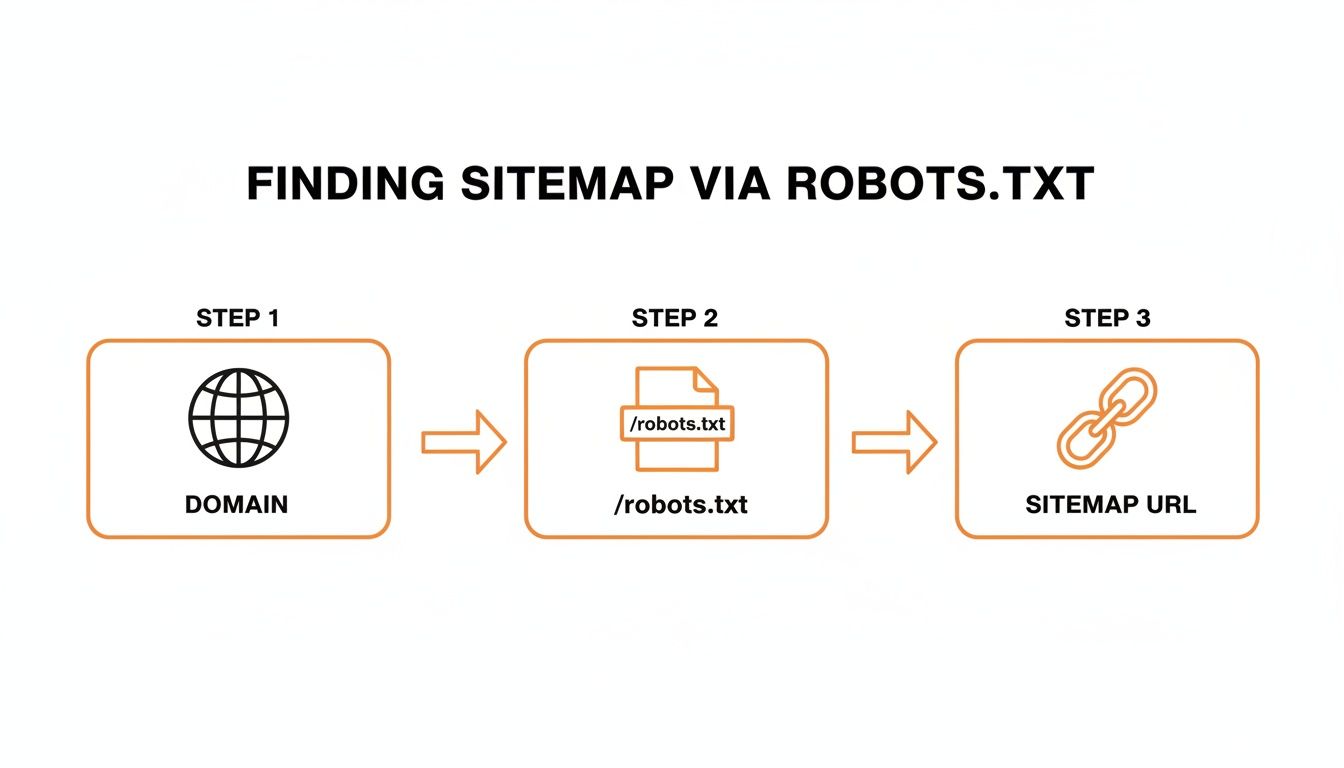
This simple flow is my go-to method: start with the domain, check the robots.txt file, and you’ll usually find a direct link to the sitemap. It’s that straightforward most of the time.
Decoding the Robots.txt File
When you open the file, you’ll see a few lines of text. It might look a bit technical at first glance, but don’t worry—you only need to find one specific line. Just scan the contents for anything that starts with Sitemap:.
The URL following that Sitemap: directive is the prize. This is the most reliable way to find the sitemap because the site owner has explicitly told search engines, “Here it is!” You can dive deeper into how this process works by reading up on what a web crawler is.
What If the Sitemap Directive Is Missing?
So, you’ve checked the robots.txt file and there’s no sitemap listed. What now? This doesn’t necessarily mean a sitemap doesn’t exist. Sometimes it’s just an oversight from the webmaster or a little clue that their technical SEO isn’t quite buttoned up.
When this happens, it just means we have to dig a bit deeper using other methods.
A missing sitemap in the
robots.txtis often a small red flag for me during a quick site audit. It hints that the site might not be adhering to all technical SEO best practices, which could point to other underlying issues impacting its performance.
5. Advanced Techniques for Finding Hidden Sitemaps
Sometimes, the usual suspects—like checking sitemap.xml or the robots.txt file—turn up empty. But that doesn’t always mean a sitemap doesn’t exist. It might just be hiding in a less obvious place.
This is when you need to put on your detective hat. A sitemap could be named something unconventional or buried deep within the site’s architecture, especially on large, complex websites. Let’s dig into a few advanced methods to uncover these elusive files.
Dig Deeper with Google Search Operators
One of the most powerful and surprisingly simple tricks is to use Google search operators. Think of them as special commands that let you tell Google exactly what you’re looking for on a specific website.
For finding a sitemap, this is the magic formula you’ll want to use:
site:example.com filetype:xml inurl:sitemap
Just pop that into the Google search bar (swapping example.com with the site you’re investigating), and see what comes up.
Here’s a quick breakdown of what’s happening in that command:
site:example.comtells Google to search only within that specific domain.filetype:xmlnarrows the results down to just XML files.inurl:sitemaplooks for URLs that contain the word “sitemap.”
This little trick is my go-to when a sitemap isn’t immediately obvious. It can instantly uncover sitemaps with non-standard names or those tucked away in subfolders you’d never think to check manually.
Look Under the Hood with Browser Developer Tools
If Google operators don’t do the trick, it’s time to get a bit more technical. Your web browser’s built-in developer tools (like Chrome DevTools) can be a goldmine of information. This is particularly useful for sites built with modern JavaScript frameworks, where things aren’t always what they seem on the surface.
The ‘Network’ tab is your key to this. It shows you every single file your browser requests when it loads a webpage.
To use it, just open the developer tools (usually by pressing F12 or right-clicking and selecting ‘Inspect’), go to the ‘Network’ tab, and then reload the website’s homepage. In the filter or search box that appears within the Network tab, type in .xml or sitemap.
You might be surprised to see a sitemap file pop up. Often, scripts will call on these files in the background without a direct, visible link anywhere on the page.
Using developer tools feels a bit like looking backstage during a play. You see all the hidden mechanics that make the website run, often revealing files and processes that aren’t meant for the public eye but are critical for search engine crawlers.
Let SEO Crawlers Do the Heavy Lifting
When you’re dealing with a massive website or need to be absolutely certain, nothing beats a professional SEO crawler. Tools like Screaming Frog, or the site audit features in platforms like Ahrefs and Semrush, are built for this kind of work.
These tools crawl a website the same way Googlebot would, following every link and automatically checking for robots.txt directives and common sitemap locations. Within minutes of starting a crawl, they’ll report back with any sitemaps they’ve found.
For a professional SEO, this is the standard approach. Manual checks are great for a quick look, but a dedicated crawler provides a comprehensive, reliable report that saves a ton of time and ensures you don’t miss a thing.
Sitemap Discovery Tool Comparison
Deciding between a quick search operator and a full-blown SEO crawler often comes down to the task at hand. Here’s a quick comparison to help you choose the right tool for the job.
| Feature | Google Search Operators | SEO Crawlers (e.g., Screaming Frog) |
|---|---|---|
| Speed | Instantaneous. Perfect for a quick spot-check. | Slower. A full crawl can take minutes to hours depending on site size. |
| Cost | Free. It’s just a Google search. | Often requires a paid subscription for full features, though some have limited free versions. |
| Scope | Limited to what Google has indexed. Might not find brand-new or unlinked sitemaps. | Comprehensive. Crawls the entire site in real-time, finding all linked resources. |
| Technical Skill | Very low. Just need to know the right command to type. | Moderate. Requires understanding how to set up and interpret a crawl. |
| Best For | Quick audits, competitor analysis, finding publicly indexed sitemaps on the fly. | In-depth technical SEO audits, large-scale website analysis, finding all sitemaps reliably. |
While search operators are fantastic for quick, surgical strikes, a dedicated SEO crawler is the tool of choice for any deep, comprehensive site audit where accuracy and completeness are non-negotiable.
Platform-Specific Guides for WordPress and Shopify
Most websites these days are built on a popular Content Management System (CMS), not coded from the ground up. Knowing the common quirks of platforms like WordPress or Shopify gives you a massive head start when hunting for a sitemap. Instead of fumbling around with random URLs, you can go straight to the usual suspects.
This is a huge time-saver because every CMS, and the plugins that go with it, has its own way of naming and structuring sitemaps. A standard Shopify store, for instance, handles its sitemap in a completely different way than a WordPress site running a powerful SEO plugin.
Let’s look at where to find them on the biggest platforms.
Finding a WordPress Sitemap
WordPress is a giant, powering over 43% of all websites, so you’ll run into it constantly. Fresh out of the box, WordPress creates a very basic sitemap at domain.com/wp-sitemap.xml. But honestly, you’ll rarely see this one used on a site that takes its SEO seriously.
Most well-maintained WordPress sites use a dedicated SEO plugin to generate much more sophisticated sitemaps, and these plugins completely override the default one. Here’s where to look, based on the most common plugins I see every day:
- Yoast SEO: This is the undisputed heavyweight. Yoast almost always generates a sitemap index file at
domain.com/sitemap_index.xml. This file doesn’t list the URLs itself; instead, it links out to a collection of smaller sitemaps for posts, pages, product categories, and so on. - Rank Math: A very popular and powerful alternative, Rank Math also tends to use
domain.com/sitemap_index.xmlas its default. From that index, you’ll find links to individual sitemaps likepost-sitemap.xmlandpage-sitemap.xml. - All in One SEO (AIOSEO): This plugin can be a bit of a chameleon. While it might use
/sitemap.xml, it often acts as an index file, just like the others.
My Pro Tip: If you can’t figure out which SEO plugin a WordPress site is using, just look at its source code. Right-click anywhere on the page and select “View Page Source.” Then, just hit CTRL+F (or CMD+F) and search for “Yoast” or “Rank Math.” The code will almost always give away what’s running under the hood, pointing you to the right sitemap location.
The Shopify Sitemap Location
Shopify is a completely different beast. Because it’s a closed-source platform, things are much more standardized—which makes our job incredibly easy. For any store running on Shopify, the sitemap is automatically generated and is always in the same spot.
There’s no need to play detective. Just type this into your browser: shopifystore.com/sitemap.xml.
This file is a sitemap index that neatly organizes links to separate sitemaps for every part of the store:
- Products (
sitemap_products_1.xml) - Collections (
sitemap_collections_1.xml) - Blog Posts (
sitemap_blogs_1.xml) - Pages (
sitemap_pages_1.xml)
The beauty of Shopify is that it handles all this for you. You don’t have the same ability to tweak the sitemap file as you would with a WordPress plugin, but that predictability is a gift. It makes the technical side of auditing a Shopify site straightforward.
A Note on Other Platforms Like Magento
If you’re dealing with larger e-commerce sites, you’ll likely encounter Magento. It works a lot like Shopify in this regard. Magento automatically generates its sitemap, and you can almost always bet on finding it at magentostore.com/sitemap.xml.
Knowing these go-to locations for each platform is a simple trick that separates the pros from the amateurs. It lets you skip the tedious guesswork and get right to the meaningful part of your SEO audit: analysing the site’s architecture and finding opportunities for improvement.
So, You’ve Found the Sitemap. Now What?

Excellent, you’ve managed to hunt down your sitemap URL. But tracking it down is just the beginning. The real work—and the real SEO value—starts now.
An unsubmitted or messy sitemap is a bit like having a detailed map of a hidden treasure but never giving it to the explorer. It’s a resource with untapped potential, just sitting there. Let’s put it to work.
Your first move should always be a quick visual inspection. Pop the sitemap URL into your browser and take a look at the list of pages. This is a fundamental step in any technical site audit, and it can quickly reveal problems that might be holding your site back in search results.
Perform a Quick Health Check
What you’re doing here is a basic sanity check. You want to make sure the sitemap is an accurate, clean blueprint of your website’s most valuable content. You don’t need any special tools for this first pass, just a sharp eye for detail.
Keep an eye out for these common red flags:
- Missing Pages: Have any of your critical service pages or cornerstone blog posts been left off the list?
- Unwanted URLs: Is the sitemap bloated with low-value pages? Think thank-you pages, internal search results, or old test pages that have no business being indexed.
- Redirects and Errors: Spot-check a few URLs by clicking on them. Do they all resolve correctly with an HTTP 200 status code, or are you running into redirects (301s) and broken links (404s)?
A clean sitemap signals a well-maintained website. When it’s cluttered with outdated or irrelevant URLs, it sends mixed signals to search engines about which content is actually important. This can end up diluting your SEO efforts.
Submit Your Sitemap to Search Engines
Once you’re confident the sitemap looks good, the most critical next step is to submit it directly to search engines. For any serious SEO campaign, this isn’t optional—it’s essential.
By submitting your sitemap, you’re giving Google and Bing the most up-to-date map of your digital property, which helps them discover and crawl your content more effectively.
Here’s where you need to go:
- Google Search Console: Head to the “Indexing” section in the sidebar and click on “Sitemaps.” All you have to do is paste in your sitemap URL and hit submit.
- Bing Webmaster Tools: The process here is virtually the same. Find the “Sitemaps” tool, add your URL, and you’re all set.
This simple action is powerful. It not only prompts search engines to crawl your pages but also gives you direct feedback on any errors they encounter. This makes ongoing maintenance so much easier. Think of it this way: proper submission and monitoring are just as crucial as having well-written SEO-optimized meta tags. It completes the picture, turning a simple XML file into a dynamic tool for boosting your site’s search visibility.